
ATS That Works With Claude: How to Use Stardex With Claude
Claude meets Stardex. Here’s what Claude can do with an Agentic ATS
If you’re looking for an ATS that works with Claude, Stardex lets you connect your recruiting data directly to Claude so you can manage your pipeline using simple chat prompts.
Instead of jumping between tabs and dashboards, you can ask Claude AI, which pulls, updates, and organizes everything for you.
We’re designing Stardex not just for recruiters, but for their agents. We believe this is how recruiters will build leverage going forward by working alongside AI, and we’re excited to lead in that direction by building for it from the ground up.
Why We Built This (ATS + Claude Integration)
We noticed that our customers are already using tools like ChatGPT and Claude in their daily work. So, it didn't make sense to make these search firms leave those tools to access candidate data.
That’s why we built an integration that lets recruiters query their Stardex data directly inside Claude.
We shipped the first version in just a week, and as far as we know, Stardex is the first ATS to make this possible.
Early access customers are already using it daily. It’s still V1, but we’re learning fast and improving quickly.
Here’s how it works step by step:
How to Connect Your ATS With Claude (Stardex Step-by-Step Guide)
Step 1: Connect Stardex ATS to Claude
Start by connecting Stardex inside Claude.
Go to Connectors, then:
Click Customize
Click the + button
In the modal, enter ‘Stardex ATS’ as name and then add Stardex MCP URL
https://stardex.com/mcpClick Add
Verify that, in Connectors, you see Configure as an option (instead of Connect, which you saw earlier). This means that the connector is successful.
Once added, Stardex will appear as a tool Claude can use. This is what links your ATS to Claude so it can access your recruiting data.
Note: You need Claude premium account to enable the connector. Once connected, it can work across Claude, Claude Cowork as well as Claude Code.
Step 2: Authorize Access
After adding the connector, you’ll need to approve access.
Click Connect, then click Allow when prompted.
This step gives Claude permission to read and update your ATS data. Without it, Claude won’t be able to take any actions inside Stardex.
Step 3: Enable Always-Allow Permissions
Once connected, you can set Stardex tools to Always Allow.
This removes the extra step where Claude asks for permission every time it does something. With this turned on, actions like searching for roles or updating candidates happen instantly, making the whole experience feel much smoother.
Step 4: Start Using Your ATS Through Chat
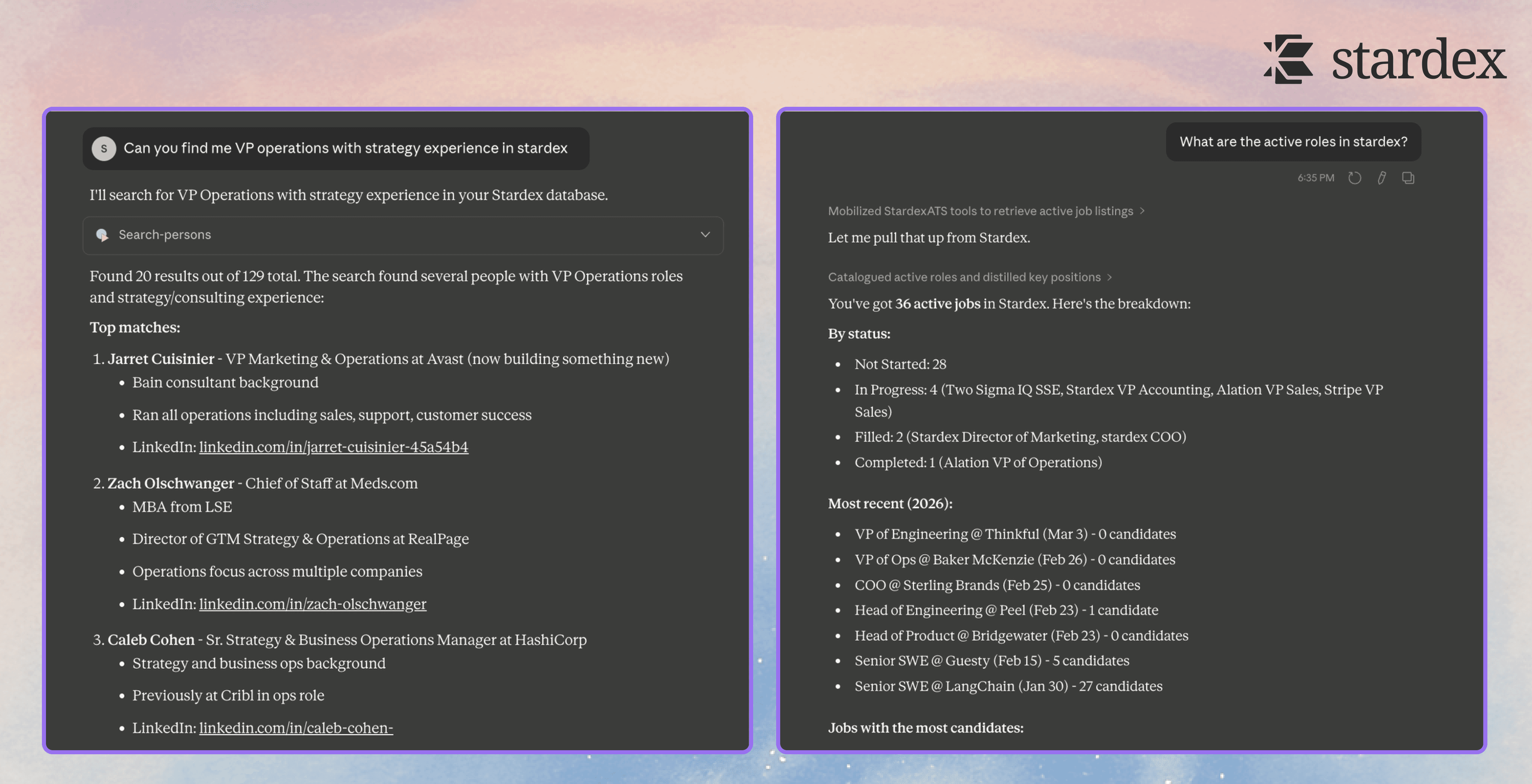
Now open a new chat in Claude.
At this point, your ATS is fully connected, so you can start asking questions like:
“What are all the VP of Engineering roles that we’ve worked on?”
Claude will look up your Stardex data, find matching roles, and return them immediately. You don’t need to filter or click through anything; it just works like a conversation.
Now imagine this in a real scenario:
It’s 8:57. Your client call starts in three minutes. You remember there’s a VP of Marketing search, but you can’t recall who’s furthest along or what happened after the last interview.
You type: “Where are we on the VP of Marketing search?”
By 8:59, you have everything. Candidates ranked by stage, the latest notes on each, and even a signal that one candidate has gone quiet for 12 days. You walk into the call fully prepared.
Step 5: Explore Roles and Candidates
Once Claude gives you results, you can naturally ask follow-up questions.
For example, who was placed in a role, which search is the most active, or which candidates are furthest along. Claude keeps track of context, so you don’t have to repeat details.
This made it easy to quickly understand which role had the most activity and who the key candidates were, without ever having to open the ATS manually.
Step 6: Update Candidates Using Plain English
This is where the integration becomes really powerful.
Instead of manually editing a candidate profile, you can tell Claude what to do. For example, you can say:
“Move this candidate to the final interview and add a note that they’re actively in process.”
Claude will handle everything in one go; it updates the stage, adds the note, and logs the activity in Stardex.
No clicking, no switching tabs, no manual updates.
In a real workflow, it looks like this:
The call ends. The candidate is moving to final interview, and you told the client you’d log it immediately.
You type: “Move Marcus to final interview, note that the client flagged strong cultural fit.”
Done. Stage updated, note added, activity logged even while you’re still on the call. No “I’ll update that later” that turns into tomorrow.
Step 7: Confirm the Update in Stardex
After Claude completes the action, you can check inside your Stardex ATS.
You’ll see that the candidate has been moved to the correct stage and the note has been added. This shows that Claude isn’t just suggesting actions, it’s actually executing them inside your ATS in real time.
Step 8: Generate Reports Instantly
You can also use Claude to turn your ATS data into reports.
For example, asking about the geographic distribution of candidates will prompt Claude to analyze the data and generate a structured summary, often with tables or charts.
Instead of exporting data and building reports manually, you ask, and Claude does the work.
Here’s what that looks like in practice:
A client emails asking how many candidates you've submitted across their three open roles and which are still active.
You type: "Submission summary for Acme Corp, all open roles."
You reply to their email before they've moved on to their next message.
Step 9: Get Quick Candidate Summaries
The next time you have a meeting and need a quick refresher, just ask Claude to summarize a candidate.
It will pull together key details like experience, notes, and highlights into a clean overview you can quickly review or share. This is especially useful when you need to get up to speed fast without digging through profiles.
We’ve seen this in how our customers actually use this feature.
One of our customers was in a car on the way to a candidate call and needed to prep quickly. Using just his phone, he asked Claude for the candidate’s contact info.
In seconds, he got a record of their recent interactions and a quick summary of the candidate’s background—even though he only asked for the candidate’s contact number.
No switching apps nor devices. Just the info he needed, right when he needed it.
Leverage Claude as Your Recruiting Assistant
Recruiters are already using tools like Claude and ChatGPT every day. Stardex meets you where you already work and turns Claude into your recruiting assistant.
With this setup, you’re not just using an ATS anymore. You’re using Claude to search roles, update candidates, and analyze your pipeline through simple conversations.
That’s what makes Stardex a true ATS that works with Claude, not just another system you have to manage manually.
If you’re already using Stardex, this is your chance to start leveraging Claude in your recruiting workflow today.
And if you’re looking to switch to an agentic ATS that works with Claude, book a demo now and see how it works in practice.
FAQS on Connecting your ATS to Claude
1. Does Claude work with other tools besides Stardex?
Yes. Claude can connect to other tools like notetakers and even other ATS platforms.
2. How does Claude improve my recruiting workflow?
Claude helps you stay on top of your pipeline without manual work. Instead of digging through your ATS, you can just ask. For example, you can: - set interview and follow-up reminders - generate weekly reports on candidates with no updates - spot stale deals or searches - quickly view compensation data across candidates - create custom workflows so nothing falls through the cracks
3. What can I actually ask Claude about my ATS data?
You can ask Claude anything you’d normally search manually—like roles, candidates, stages, notes, or activity. For example: “Who are the top candidates for this role?” “Who’s furthest along in this search?” “What’s the latest update on this candidate?”
4. What does it mean to use an agentic ATS with Claude?
An agentic ATS means your system doesn’t just store data, it can act on it. With Claude, you’re not just searching your ATS. You can manage your recruitment workflows through simple prompts.


