
How to Automate Client Meeting Prep with Claude AI and Exa
Most recruiters already use Claude or ChatGPT for small tasks—rewriting outreach, summarizing notes, cleaning up job descriptions.
But meeting prep still happens the old way.
You see a call on your calendar, open a few tabs, search their LinkedIn profiles, check the company, skim recent news, maybe glance at open roles. Fifteen to twenty minutes gone before every call.
Now imagine this instead.
You open Slack at 8 AM, and your meeting brief is already waiting for you. It covers who you’re speaking with, what their company is doing, what they’re hiring for, and a few angles you can bring into the conversation—without opening mulitple tabs.
Instead of repeating the same research every time, you can build a simple workflow inside Claude that runs automatically. It checks your calendar, researches the person and company using Exa, formats everything into a clean brief, and sends it to your Slack or email before your meeting starts.
In our recent workshop, we showed 40+ recruiters how it works live and here’s exactly how to set it up.
Step 1: Connect Exa and Google Calendar
Start inside Claude.
Go to Customize → Connectors and connect both:
Exa (for research)
Google Calendar (for meeting triggers)
Exa replaces manual Googling. Calendar tells Claude which meetings need prep. This also works with Microsoft 365 if your team is using it.
Once these are connected, you’ve set the foundation for the workflow.
Note: This will require you to have an Exa.ai account. Exa is an AI-native search engine built for machines to use. It indexes over a billion profiles and companies across the web. Get a free account to test it, and add Exa as a connector in Claude.
Step 2: Create the Claude skill
You have two options here.
Option 1: Upload a prebuilt skill (fastest)
You can use our ready-made skill as a starting point.
Download it here:
https://drive.google.com/uc?export=download&id=1nqx97qlHB9FPazvej5ssu5N6W93m5KX7
Then:
Go to
claude.ai/customize/skillsClick + Create Skill → Upload a skill
Select the client meeting prep skill
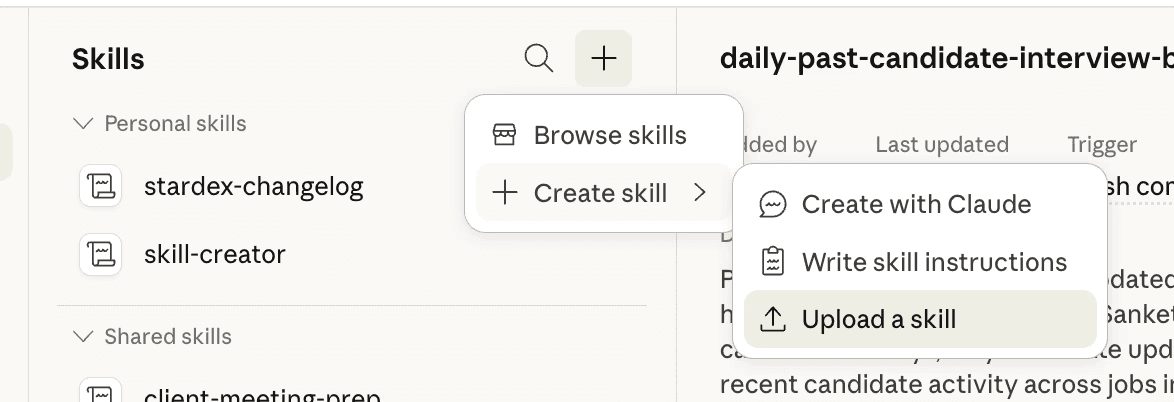
Once uploaded, open it and tweak it.
Adjust the meeting title format to match how your calendar is structured. Update the brief format to match what your clients expect. Think of this as a template—you want it to mirror how your firm actually works.
For more pre-built skills, Here are 5 ready to use Claude Skills for recruiters that you can use.
Option 2: Build your own Claude Skill
If you prefer, you can paste a prompt directly into Claude and ask it to create the skill from scratch. You may use and tweak this prompt to generate the skill, but the core instruction is simple:
Check your calendar → extract the person and company → research using Exa → format into a one-page brief.
Save it as /client-meeting-prep or whatever you prefer to name it.
That’s your one-command workflow.
Once you’ve generated the skill, make sure it’s saved in your skill database. It usually saves automatically, but if not, prompt Claude to save it.
Pro tip: Use the Sonnet model, as Opus can take a bit longer.
Step 3: Test the Claude skill
Before relying on it, run it once manually.
Just type /client-meeting-prep and review the output.
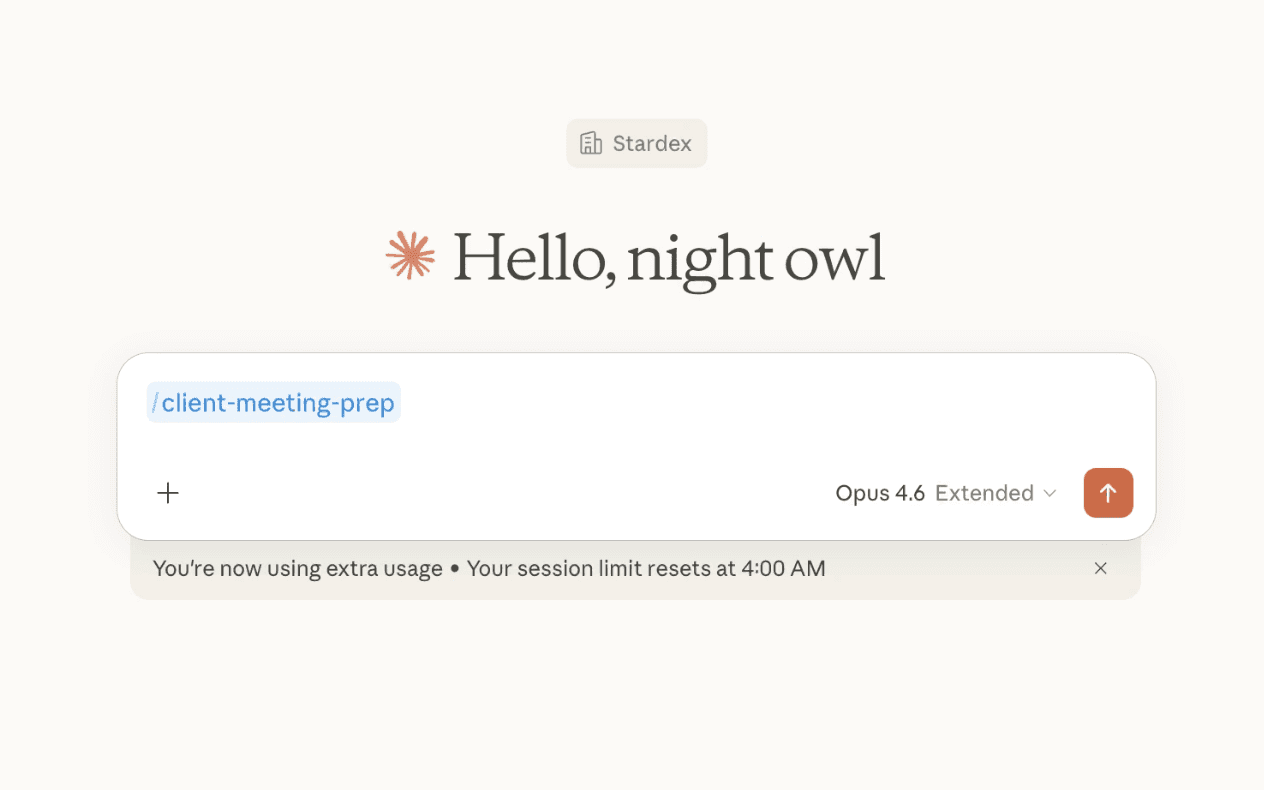
Make sure:
Claude correctly identifies the client you’re meeting up and the company
The research is relevant and not generic
The final brief is something you’d actually use before a call
While it runs, here’s what’s happening behind the scenes:
It’s checking your calendar, finding a client meeting, and researching the person and company across multiple angles like LinkedIn background, recent activity, hiring signals, competitors, and talent market context—all in parallel.
If the output feels off, this is where you tweak the skill.
Step 5: Schedule it to run automatically
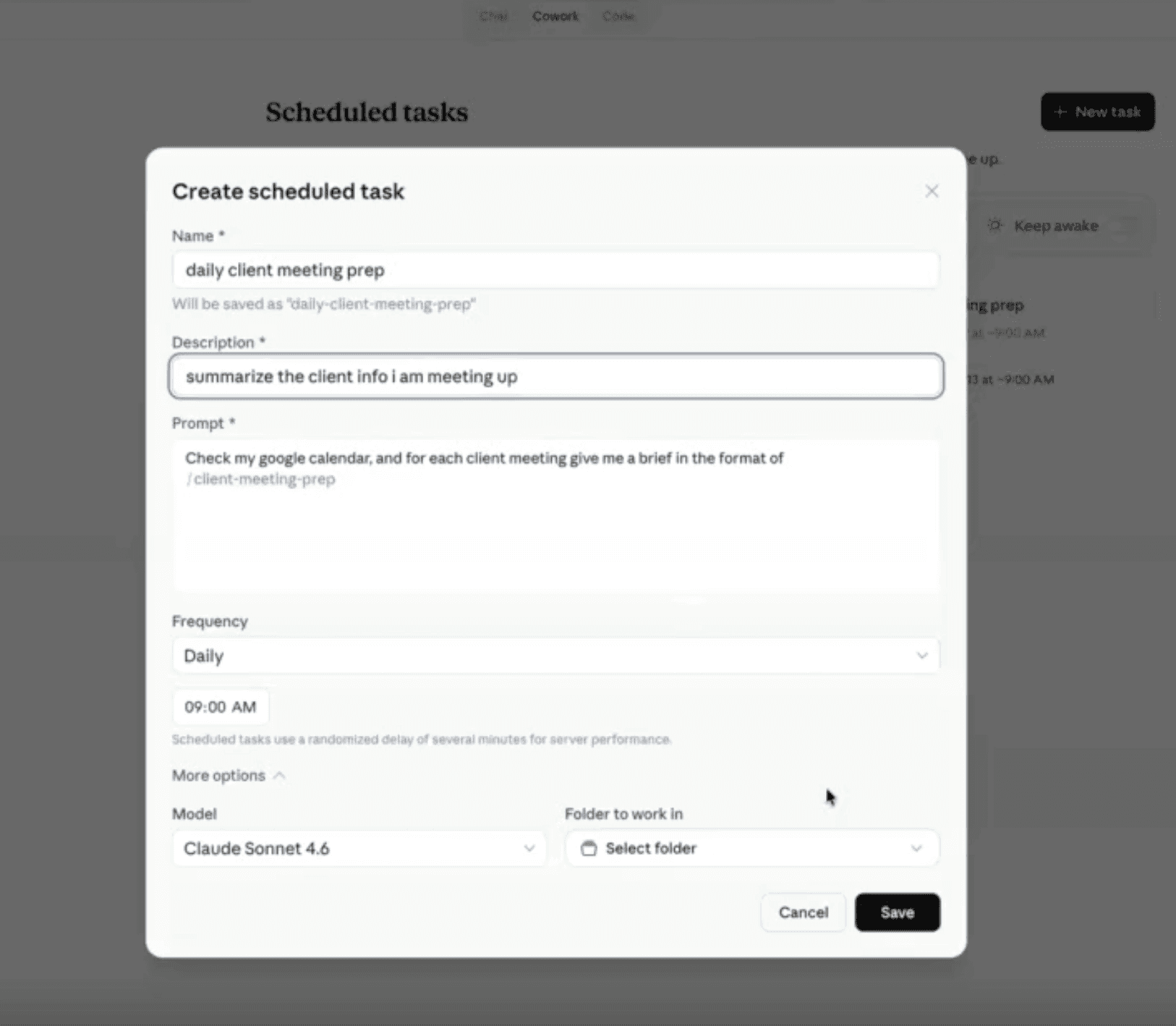
This is the ultimate unlock and where Cowork comes in. Cowork only works in the desktop app version, not the web version of Claude, so make sure to download it on your desktop.
Once you’re in Cowork, go to Scheduled, then click New Task. Under the Prompt field, reference the Claude skill /client-meeting-prep that you created.
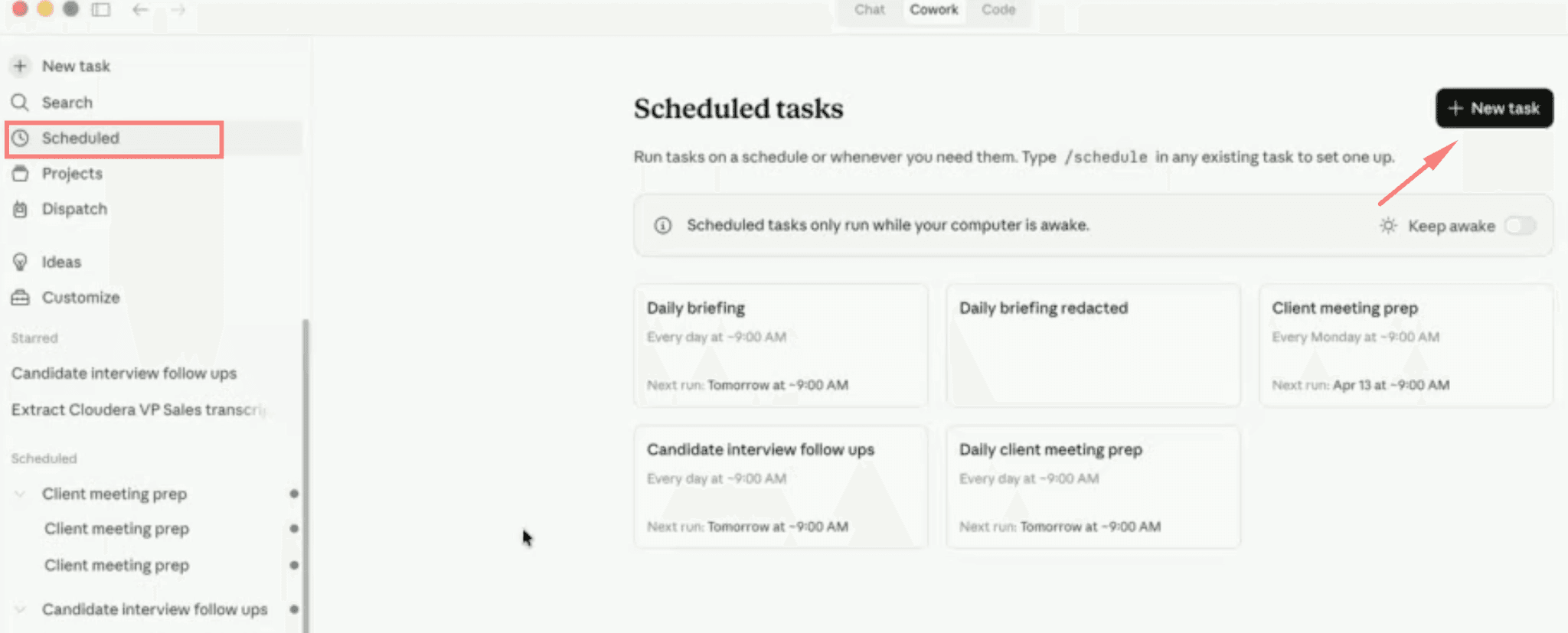
Instead of running the skill manually, you can schedule it to run every morning or based on your preferred frequency and time.
Now the workflow runs on its own:
Calendar triggers it
Exa handles research
Claude formats the brief
Slack delivers it to you
One trigger, three systems—Calendar, Web, Slack.
You go from reacting to meetings to starting your day already prepared.
Does this skill work with other tools aside from Exa? Absolutely. If you're using Bullhorn, Crelate, or Loxo—the same concept applies. If your ATS has an API or MCP server (like Stardex), you can connect it directly. Here’s how an ATS that works with Claude looks in practice.
Before vs After Installing Claude Skill for Recruiters
Before, you’d open your calendar, realize you had a call coming up, and spend 15 to 20 minutes jumping between tabs—LinkedIn, company site, recent news, open roles. You’d piece together just enough context to get through the meeting with a client.
After setting this Claude automation up, that work disappears.
In fact, one recruiter in the session tested this with a morning call with a VP of Talent. The calendar invite only had a name and a LinkedIn link.
Instead of scrambling, they opened Slack at 8 AM and found a complete brief already waiting. It covered the person’s background, the company’s growth stage, hiring patterns, and a clear angle for the conversation.
No last-minute prep. Just context, ready to use.
That’s the shift you’re aiming for.
Explore More Claude Skills for Recruiters
If you want more workflows like this, we’ve put together a full breakdown of the most useful Claude skills recruiters should use today - from client meeting prep to sourcing and follow-ups. Each one is ready to use or customize based on how your firm operates.
If you have ideas for workflows you’d want automated or want help setting any of this up, reach out to us at support@stardex.ai.
If you want to watch the full demo in setting up this Claude Skill, here's the full tutorial video:


